
Menus
Navigational menus received what is likely the biggest overhaul of all of our design elements.
In the old design, menu items are typically edited via files typically found in the config folder (site_config,pcf, section_config.pcf, callout.pcf, etc.). However, in the new design, there is no config folder.
To update your navigational menus in the new design, you need to edit one files that end with .ounav.
During the file migration process, all links that were located in site_config.pcf (Horizontal Menu) and/or section_config.pcf (Sidebar Menu) files, were placed in the _nav.ounav file, while all links that were in the callout.pcf (Take Action) file were placed in the _callout.ounav file.
All pages will have a third horizontal menu that can be found directly below the new hero image/video section on most sites.

Pages that use a two column layout have two side navigation menus.
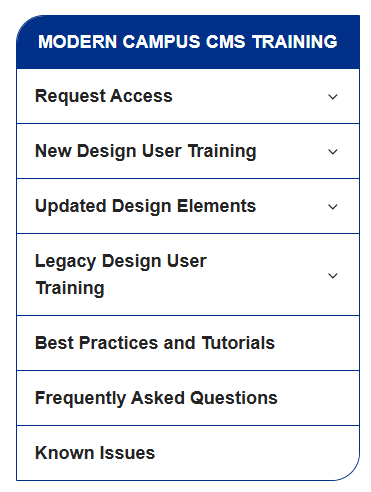
Editing your ounav file
The editing process for all .ounav files is the same.
To begin editing it, click on it, you will automatically enter 'Edit' mode.

Adding New Menu Item
To add a new menu item, select the '+ ADD NEW' button (pictured below)

Select the menu item that you would like to edit on the left side of the screen. From here, you'll want to focus on the form on the right side of the screen:
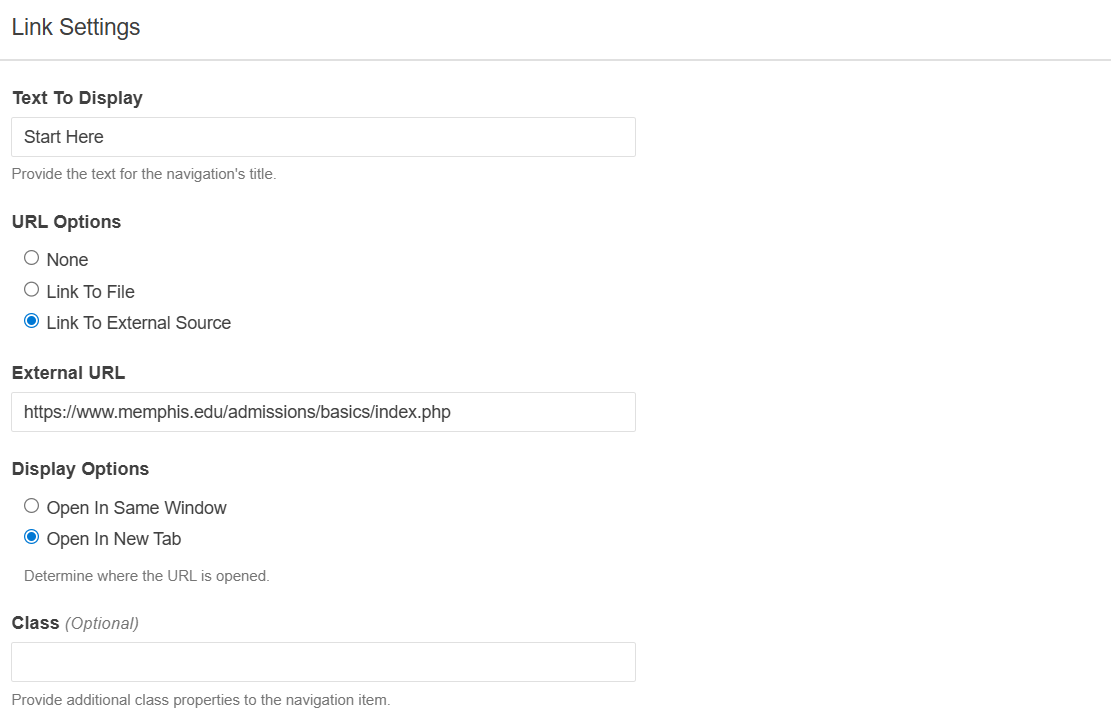
Text to Display: What will be displayed in the menu once the file has been published
URL Options: You have three options for this menu item, it can either:
- Not include a link
- Link to a file within the CMS
- Link to an external source
NOTE: Your remaining available options in the form will change depending on which of these options you select.
File: This field appears if you select option 2 (Link to File). Here, you can either add the URL of the page you'd like to include or use the file explorer icon at the end of the field to manually search for the page.
External URL: This field appears if you select option 3 (Link To External Source). Here, you can add the URL of the site you'd like to include in this menu file.
It is recommended that you always open External URLs in a new tab.
Class (optional): Allows you to add some customization to your menu item using classes. There are currently three classes that the ounav file supports: top-navigation & no-dropdown
- top-navigation-only: This class will add a menu item to the tertiary horizontal menu It will not appear in the side navigation.
- no-dropdown: This class will remove dropdown behavior from a menu item, if one is not desired
When you are done applying your changes, save, then publish the _nav.ounav file.
You no longer need to request a folder republish for menu updates. Publishing the
ounav file should update menu on your site within minutes.
Folder republishes are only required if you would like to globally update your menu
titles.
Removing a menu item
To remove a menu item, simply select the trash can icon at the end of the menu item.

Rearranging menu items
To move a menu item, simply drag and drop the menu item on the left side of the screen to its new location.
Understanding ounav Behavior
By default, all newly created sections come with its own _nav.ounav file.The _callout.ounav file is available at the root level, however, it can be added to other subfolders as needed.
One major change from the previous design is that there is no limit to the number of links that you can include in these navigation files.
_nav.ounav files only apply to the section they are in. If no menu items are in this file at the root of the microsite, the menu will not appear. If the _nav.ounav file in a subfolder doesn't have any menu items, a 'Page Up' arrow link will appear for pages using the two column layout (pictured below). This button will take site visitors to the index page of the folder that is available one level higher than the current subfolder

Menu titles can be updated from one of two places. The first is through the The Section Breadcrumb Title, which will apply this change globally for the folder this ounav file is in. The second is via the 'Navigation Heading’ field found in Page Parameters, which will only apply this change to the page being edited.
Tertiary Horizontal Menu
If you would like a menu item to appear in this menu, add the top-navigation-only class to the menu item in the _nav.ounav file.
Alternatively if you would prefer to not use this class, and if you have the appropriate permissions, you can copy _nav.ounav file and change the name of the copy to _topnav.ounav. Any menu items that appear in this file will appear globally across your microsite in its tertiary menu.
In the current design, you also have the option of having unique tertiary menu for any/all of your microsite's subfolders.
What this means, is that if a _topnav.ounav file were to be copied to a subfolder (let's say /admissions/apply), then that folder's _topnav.ounav menu would override the menu found at the root of the site (/admissions/ in this case).
The tertiary menu displays just below the hero image/video for pages.
However, if there are no images/videos, it will instead display just below the Page Heading banner.

Nested Side Menu
A nested side menu will be created by default if you add a sub-folder's index file to the root folder's _nav.ounav file.
Let's take a look at our training website (/modern_campus_cms_training). If I add the New Design User Training page (/modern_campus_cms_training/new_design_user_training/index.php), to the _nav.ounav file that's in the /modern_campus_cms_training/ folder, that will generate a drop-down that includes any links from the _nav.ounav file in the /modern_campus_cms_training/new_design_user_training/ folder.
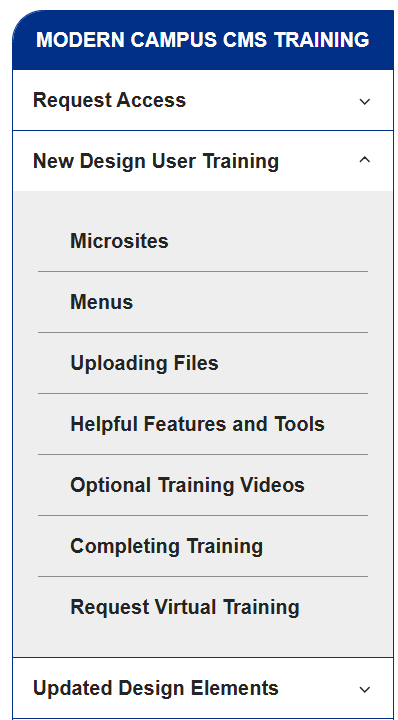
If you want an index page to appear in the side navigation, but don't want a drop-down, please add the no-dropdown class to that menu item in the ounav file.
If you would like a nested side menu, but would like to include links to pages from other directories, you will need to manually drag the menu item in the ounav file so that there is a natural indent underneath the parent menu item.
See example below:

In the new design, the parent menu item for nested menus can now include a link to a page without losing its functionality.
Take Action Menu
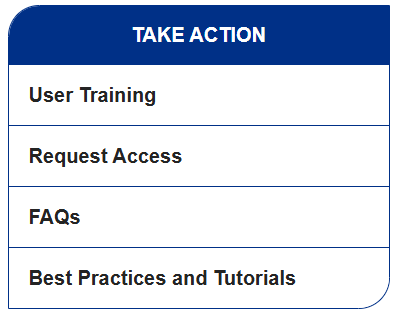
The _callout.ounav file behaves the same way the original callout.pcf file behaved. It is an additional menu that will display just below the side navigation.
As was the case with the previous design, this menu appears globally across all folders for pages that support side navigation. However, in the current design, you also have the option of having unique Take Action menus for any/all of your microsite's subfolders.
What this means, is that if a _callout.ounav file were to be copied to a subfolder (let's say /admissions/apply), then that folder's _callout.ounav menu would override the menu found at the root of the site (/admissions/ in this case).
"Take Action" is the default name for this menu, however, this can be changed in a couple of different ways. The first is via Page Parameters. Updating the Callout Heading field for any given page will update the name of the Take Action menu for that page.
If you would like this change to be globally applied, please reach out to our team for further assistance. We can apply a directory variable that will update the menu name across your entire microsite.
This menu also supports nesting, however, you will need to manually drag the menu item in the ounav file so that there is a natural indent underneath the parent menu item.
If you do not want a Take Action menu, simply delete all entries and republish the file.