
Helpful Features and Tools
Editing a website for the first time can, understandably, be overwhelming. There are a few features and tools, however, that will help make the experience much easier.
Filter Bar and More Actions Button
In 'Pages' view, there is a filter bar underneath the 'Upload' and 'New' button on the right-hand side of your screen (pictured below)

This can be used quickly search the folder you're currently in for a file. It's also helpful for finding your microsite in the event you've accidentally navigated away from it.
From the 'Pages' view, there is also a 'More Actions' button that can be selected on any file or folder. This icon has three dots and can be found on the right-hand side of your screen (pictured below)

Clicking on this will open a menu for that file or folder that allows you to 'Edit', 'Review', 'Publish' or more (pictured below)

Selecting 'Edit', then 'File' will take you to the 'Edit' view for the page. When you have time, please take time to familiarize yourself with what is available here.
File Explorer
When inserting a link or image, you may have noticed that there is an icon at the end of the first field. Selecting this icon, which looks like a browser window with an arrow pointing upwards (pictured below), opens a file explorer.

This file explorer allows you to search for the file that you'd like to use for the page. When you insert a link or image this way, instead of displaying the full hyperlink, it displays the file number (or dependency tag) instead (pictured below)

Note that the filepath for the selected file can be seen below the field. This method is recommended since it preserves the link in the event the file is ever moved or renamed.
HTML Editor
Knowing and understanding HTML is not a requirement for editing your website, however, becoming familiar with a few coding concepts can improve your overall website editing experience. All website editors have an HTML Editor icon on their Modern Campus CMS Toolbar (pictured below)

When you open your editor, you should get a pop-up for another editing window. Notice that everything that is on this page is further broken down into its respective HTML elements. Regular text are in paragraph tags (<p></p>), while the headings are in heading tags <h1></h1). Images are in image tags (<img></img>). Also notice that all of the sentences for this paragraph are all in one paragraph tag (<p></p>), while the first sentence on this page is in a paragraph tag (<p></p>) by itself. Tag placement affects the formatting for the page.
To better familiarize yourself with more coding concepts, we recommend checking out our WebDev site.
Snippets
Snippets are a type of reusable content that insert predefined content into a page while editing.
The snippet content is then edited in the WYSIWYG editor without affecting the original snippet file.
To add a snippet to a page, click "Insert Snippet" button on the Modern Campus CMS Toolbar:

Once you've clicked the button, you will be taken to the Choose Snippet menu.
From this menu, you can select a snippet to view a preview of how it will look on the page, and insert it:
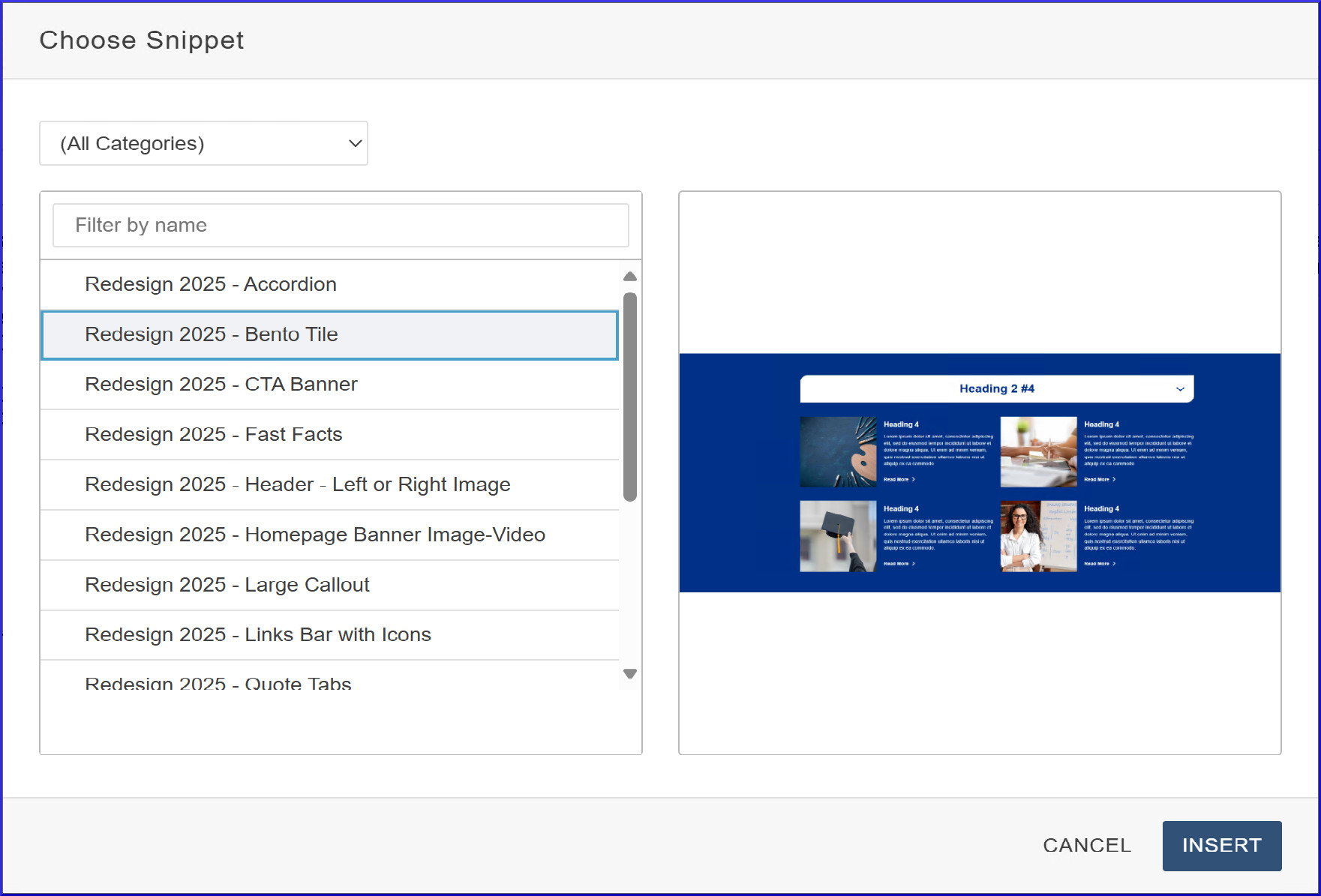
When you add the snippet to your page, you should see a table with cells that you'll need to edit to fit your needs. If you decide that you would like to remove a snippet, you can do so by selecting the 'Delete Table' button (looks like a square with just an X on it) on Table Properties.

For a complete list of snippets available for use, along with a description of what they do and how they function, please visit the Snippets section of the Updated Design Elements section of this site.
Components
Components are form-based types of reusable content that gather information and add it to complex design elements.
A component on a page prompts you to enter information and adds source code to format and display the information.
Use components to easily update content in design elements that have moving parts, such as slide shows and info cards.
To add a component to a page, click "Insert Component" button on the Modern Campus CMS Toolbar:

Once you've clicked the button, you will be taken to the Choose Component menu.
From this menu, you can select a component to see a preview of how it will look on the page, and insert it:
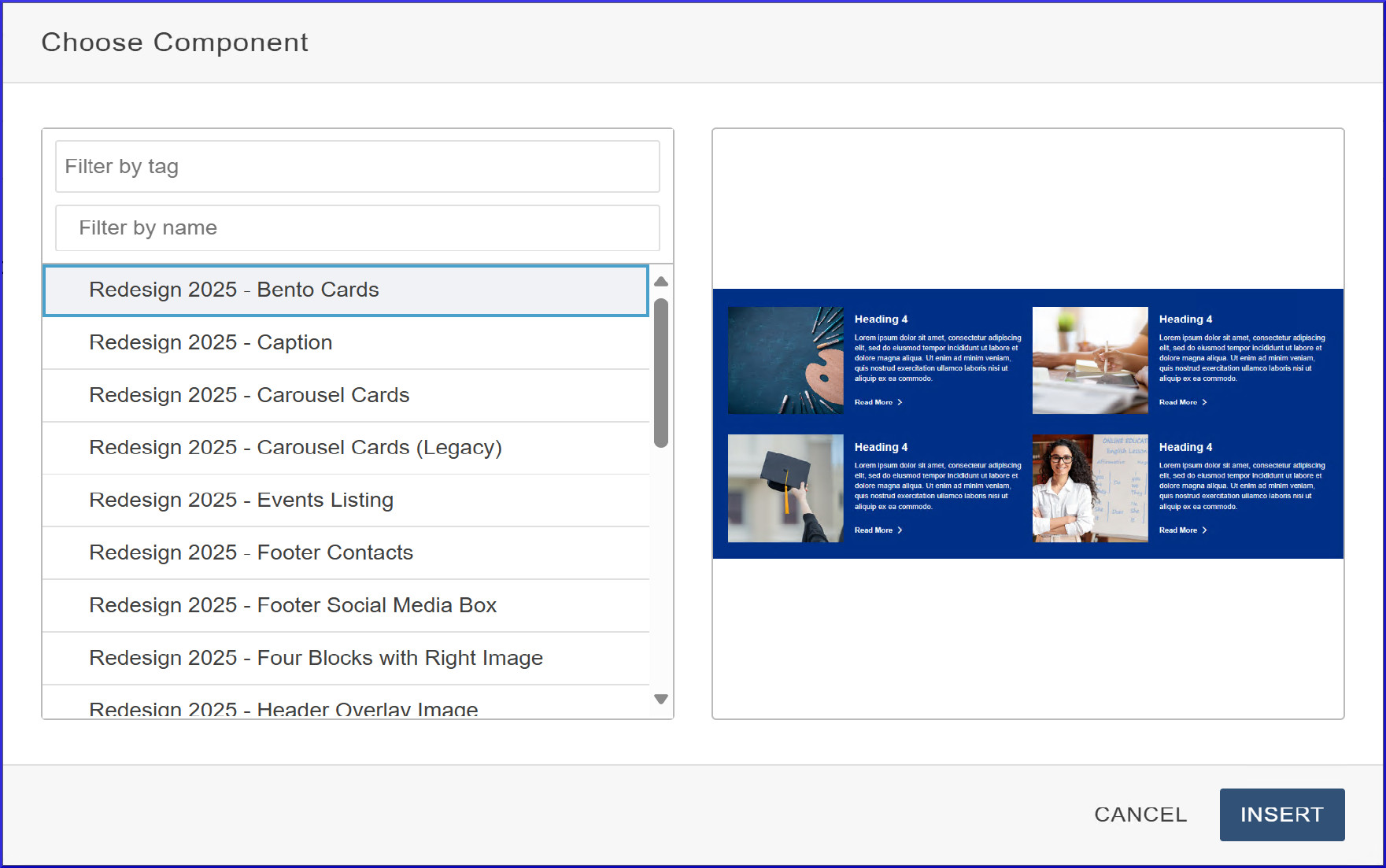
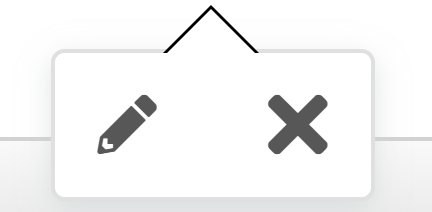
To edit components, click on the component, then select the edit icon that looks like a pencil. To remove the component, select the delete icon that looks like an X.
For a complete list of components available for use, along with a description of what they do and how they function, please visit the Components section of the Updated Design Elements section of this site.
Breadcrumbs
Breadcrumbs are user interface elements commonly used by websites to provide a hierarchical pathway for easy navigation and orientation within a website's structure.
They typically appears as a horizontal trail of clickable links, usually located near the top of the page or within a designated navigation bar, as can be seen here:
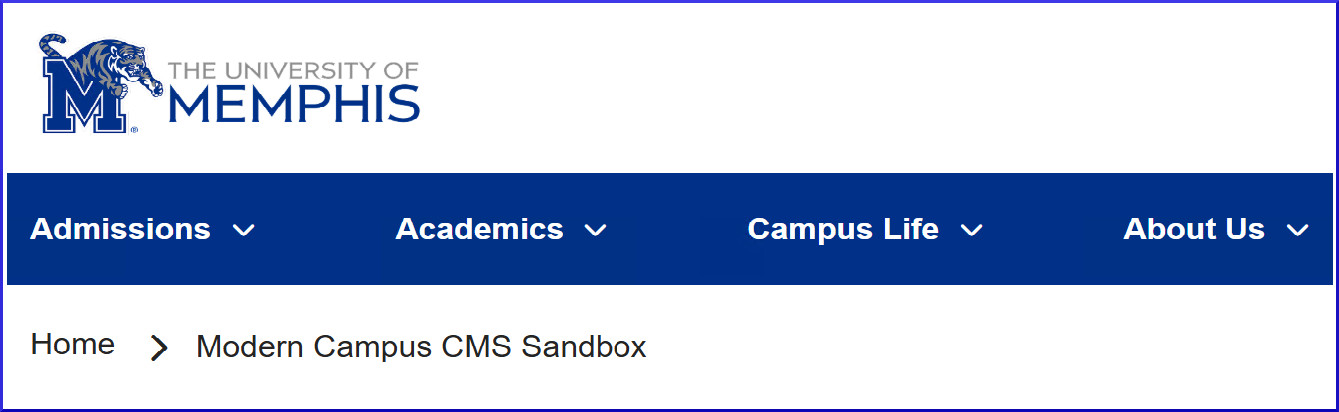
To update breadcrumbs, please refer to our Breadcrumbs page for further instructions.
Assets
Modern Campus CMS Assets are actually a set of tools that vary in use from form creation to image gallery creation. Listed below are the types of assets that our site currently support:
- Web Content: Add HTML-formatted text or media to a page (or set of pages).
- Plain Text: Add nonformatted text or media to a page (or set of pages).
- Source Code: Add source code to a page (or set of pages).
Assets are convenient since you can create one and use it on multiple different pages. If you've added the asset to multiple pages, but need to edit the asset, the good news is that publishing the asset automatically publishes all of the pages that have the asset on it.
Access to these tools are only granted upon request and only after you have already completed your Website Access training.