
Uploading Files
You will typically upload files and publish them before linking to or using them on a site or page.
To upload a file, navigate to the folder you wish to upload the folder to, for example:
/modern_campus_cms_sandbox/pdfs/
This is the Modern Campus CMS Sandbox folder created to store Adobe PDF files.
Once in the folder, select the 'Upload' button in the upper right-hand corner of the Modern Campus CMS file navigation screen:
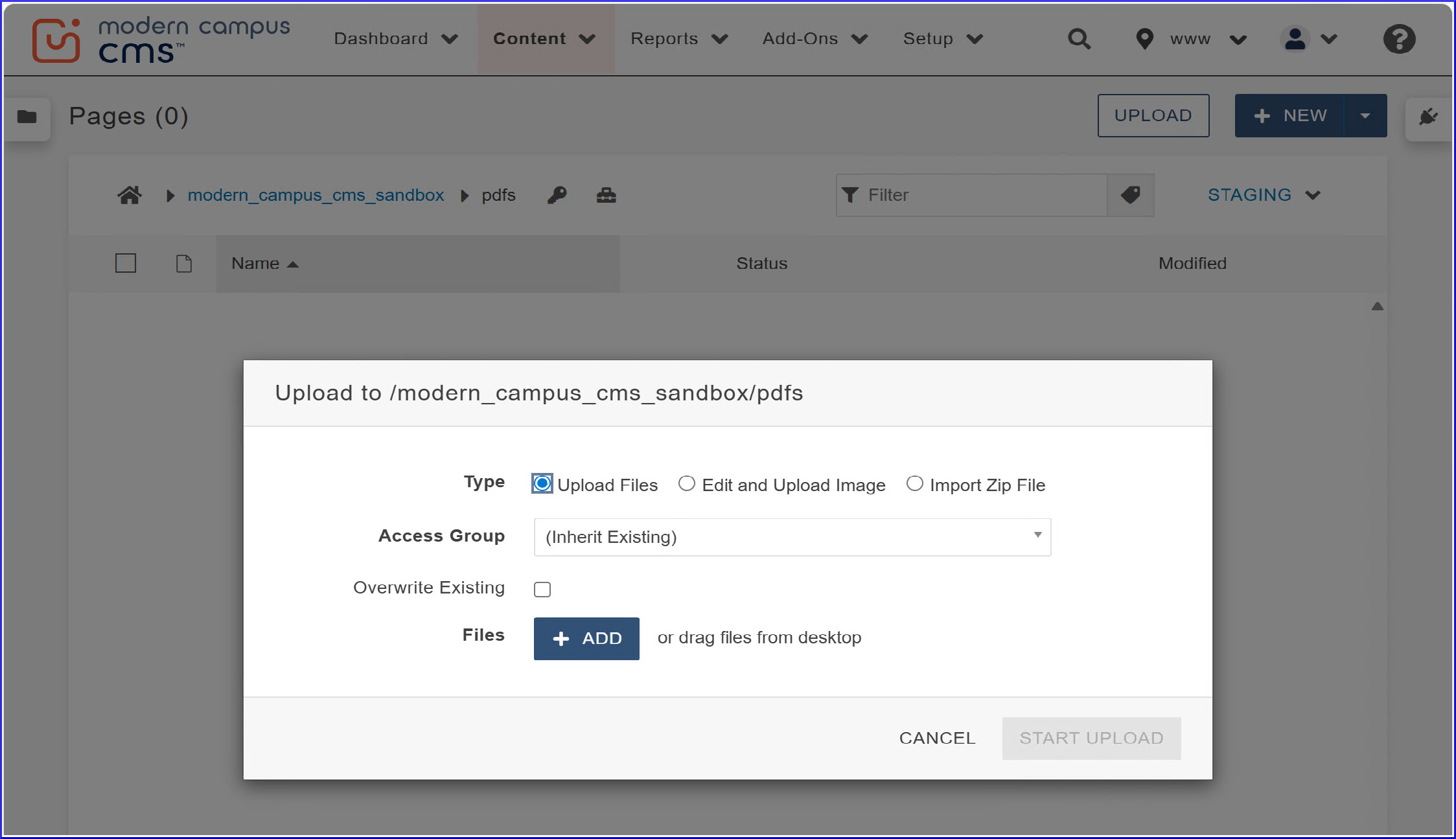
Click the '+ ADD' button to select the file you wish to upload, then click the 'START UPLOAD' button.
It's also possible to simply drag the image from a folder on your computer to this window to add it.
Note: Uploaded files must be under the minimum file size and also have no spaces, special characters, or upper-case letters in their name.
Once the file has been uploaded, open it in Modern Campus CMS, then click the green 'Publish' button in the upper right hand corner.
Once published, the file will be publically viewable and ready for use.
** Note: Every file uploaded to Modern Campus CMS has to be published. Otherwise, the file in question may not display properly. **
Helpful Features and Tools >