
Components
Components are form-based types of reusable content that allow you to add complex design elements. Once added to a page, you can edit the component without affecting the original component file.
For instructions on how to add or remove Components, please refer to the Components section of our Helpful Features and Tools page.
Components Library
Below you will find a list all available components.
Use the following search bar to quickly sort through the list of available Components provided below
Suggested keywords: cards, caption, carousel, gallery, slide show, social media, image, header, events, news, footer, contact, programs, search
Bento Cards
This component is intended to be used within the Bento Tile Snippet content area. If used by itself, it will simply look like a grid with images and content.
This is what it looks like outside of the Snippet.

Heading 4
Lorem ipsum dolor sit amet, consectetur adipiscing elit, sed do eiusmod tempor incididunt ut labore et dolore magna aliqua. Ut enim ad minim veniam, quis nostrud exercitation ullamco laboris nisi ut aliquip ex ea commodo.
Read More
Heading 4
Lorem ipsum dolor sit amet, consectetur adipiscing elit, sed do eiusmod tempor incididunt ut labore et dolore magna aliqua. Ut enim ad minim veniam, quis nostrud exercitation ullamco laboris nisi ut aliquip ex ea commodo.
Read More >
Heading 4
Lorem ipsum dolor sit amet, consectetur adipiscing elit, sed do eiusmod tempor incididunt ut labore et dolore magna aliqua. Ut enim ad minim veniam, quis nostrud exercitation ullamco laboris nisi ut aliquip ex ea commodo.
Read More >
Heading 4
Lorem ipsum dolor sit amet, consectetur adipiscing elit, sed do eiusmod tempor incididunt ut labore et dolore magna aliqua. Ut enim ad minim veniam, quis nostrud exercitation ullamco laboris nisi ut aliquip ex ea commodo.
Read More >
Image: The image for the card. The recommended image size is 500 x 400px.
Image Alt Text: The alt text for the image.
Card Title (h4): The title of the card. (optional)
Card Subtitle: The subtitle content for the card. This will display just below the card title. (optional)
Link Text: The text for the link. (optional)
Link: The hyperlink. (optional)
Link Target: The target location of the link. You have the option of having the link open in the Current Window or a New Window. If the link does not point to a memphis.edu domain, it is recommended that this point to a new window. (optional)
By default, there need to be, at minimum, two groups for this component. However, you have the option to add more than one
Leaving any of the optional fields blank will simply omit those entries from the component.
Bento Cards with Container
These Bento Cards can be used outside of the Bento Tile snippet.
Heading 4
Lorem ipsum dolor sit amet, consectetur adipiscing elit, sed do eiusmod tempor incididunt ut labore et dolore magna aliqua. Ut enim ad minim veniam, quis nostrud exercitation ullamco laboris nisi ut aliquip ex ea commodo.
Read More
Heading 4
Lorem ipsum dolor sit amet, consectetur adipiscing elit, sed do eiusmod tempor incididunt ut labore et dolore magna aliqua. Ut enim ad minim veniam, quis nostrud exercitation ullamco laboris nisi ut aliquip ex ea commodo.
Read More
Heading 4
Lorem ipsum dolor sit amet, consectetur adipiscing elit, sed do eiusmod tempor incididunt ut labore et dolore magna aliqua. Ut enim ad minim veniam, quis nostrud exercitation ullamco laboris nisi ut aliquip ex ea commodo.
Read More
Heading 4
Lorem ipsum dolor sit amet, consectetur adipiscing elit, sed do eiusmod tempor incididunt ut labore et dolore magna aliqua. Ut enim ad minim veniam, quis nostrud exercitation ullamco laboris nisi ut aliquip ex ea commodo.
Read More
Image: The image for the card. The recommended image size is 500 x 400px.
Image Alt Text: The alt text for the image.
Card Title (h4): The title of the card. (optional)
Card Subtitle: The subtitle content for the card. This will display just below the card title. (optional)
Link Text: The text for the link. (optional)
Link: The hyperlink. (optional)
Link Target: The target location of the link. You have the option of having the link open in the Current Window or a New Window. If the link does not point to a memphis.edu domain, it is recommended that this point to a new window. (optional)
By default, there need to be, at minimum, two groups for this component. However, you have the option to add more than one
Leaving any of the optional fields blank will simply omit those entries from the component.
Caption
Content: A miniature WYSIWYG editor for you to add content to.
Carousel Cards
Heading 2
Lorem ipsum dolor sit amet, consectetur adipiscing elit, sed do eiusmod tempor incididunt ut labore et dolore magna aliqua. Ut enim ad minim veniam, quis nostrud exercitation ullamco laboris nisi ut aliquip ex ea commodo consequat.


Section Title (h2): The heading that will display directly below this component. (optional)
Section Subtitle: The subtitle content that will display below the heading. (optional)
Background Type: The background options for the carousel. You have the option of selecting between a solid color or pattern. (optional)
Image: The image for the carousel. Recommended Image Size is 400 x 500px.
Image Alt Text: The alt text for the image
By default, there need to be, at minimum, three groups for this component. However, you have the option to add more, or remove those added options
Leaving any of the optional fields blank will simply omit those entries from the component.
Events Feed Slider (Multi)
Events Section Heading: The title for the Events section. (optional)
Calendar Category: The Calendar that the component pulls the event feed from.
Featured Events Only?: A filter for the component. If selected, this will only display featured events. (optional)
Tag Filter: A filter for the component. Selecting one or more of the tags from this field will display events with the matching tags. (optional)
Number of Events: A filter for the component. Selecting a number will change the number of visible events for this feed.(optional)
If this component is added to the section of the page that is next to an enabled sidebar menu, then the maximum & minimum number of visible events will be 3 due to the amount of space left on the page. To view more events in the slider, use this on either a full-width page or in the full-width section of a page.
Scroll Mode: A filter for the component. Selecting item will allow the slider to increase by 1. Selecting page will allow the slider to increase by the number of visible events. For example, if there are 3 events displaying, then the slider will increase by 3 fo each button. (optional)
Button Text: The button text. (optional)
Button Link: The link for the button. (optional)
This calendar will pull a feed https://www.memphis.edu/calendar/.
Events Feed Slider (Single)
Events Section Heading: The title for the Events section. (optional)
Calendar Category: The Calendar that the component pulls the event feed from.
Featured Events Only?: A filter for the component. If selected, this will only display featured events. (optional)
Tag Filter: A filter for the component. Selecting one or more of the tags from this field will display events with the matching tags. (optional)
Event Position: A filter for the component. Selecting a location will move the Event Description to either the left or right of the event. Selecting Event Only will hide the Event Description. (optional)
Event Description: The description for the event. This will be hidden if Event Only is selected in the previous option (optional)
This calendar will pull a feed https://www.memphis.edu/calendar/.
Events Listing
Upcoming Events

Kaelberer Lecture in Political Science
Quinn Houlihan presenting. Quinn’s research interests a ...

Design and Code Meet-Up
The Design and Code Meet-Up, a joint collaboration between the Crews Center for Entrepreneurship and ...

University of Memphis Wind Ensemble Concert
Section Title (h2): The title for the Events listing. (optional)
Button Text: The button text. (optional)
Button Link: The link for the button. (optional)
Button Link Target: The target location of the button link. (optional)
Events Listing Type (optional): The type of Events Listing. You have the option of displaying the news listings as "Text Only" or "Text + Image Listing".. (optional)
Featured Events Only? (optional): A filter for the component. If selected, this will only display featured events. (optional)
Event Tag (optional): A filter for the component. Selecting one or more of the tags from this field will display events with the matching tags. (optional)
Event Location (optional): A filter for the component. Typing in the location here will list events at the provided location. (optional)
Calendar Name (optional): A filter for the events listing. Typing in the name of the Calendar (as it appears in the CMS) will list events from the Calendar listed in this field. (optional)
Leaving any of the optional fields blank will simply omit those entries from the component. This calendar will pull a feed from the events data file.
Featured Event
Events Section Heading: The title for the Events section. (optional)
Calendar Category: The Calendar that the component pulls the event feed from.
Event Title: The Title of the event that you want to display. If left blank, this will pull the first event from the feed that matches the other criteria. (optional)
Featured Events Only?: A filter for the component. If selected, this will only display featured events. (optional)
Tag Filter: A filter for the component. Selecting one or more of the tags from this field will display events with the matching tags. (optional)
Event Position: A filter for the component. Selecting a location will move the Event Description to either the left or right of the event. Selecting Event Only will hide the Event Description. (optional)
Event Description: The description for the event. This will be hidden if Event Only is selected in the previous option (optional)
This calendar will pull a feed https://www.memphis.edu/calendar/.
Footer Contacts
This component should only be added to the footer.pcf file.
100 Administration Building 678.8888
Icon: The icon for the footer. You have the option of selecting from an Address or Phone icon.
Text: The text that will display underneath the icon.
Link: The link for the icon
Link Target: The target location of the link. You have the option of having the link open in the Current Window or a New Window. If the link does not point to a memphis.edu domain, it is recommended that this point to a new window.
Footer Social Media Box
This component should only be used in the footer.pcf file.
Facebook Instagram LinkedIn YouTube
Facebook Link: Your Facebook Link. (optional)
Facebook Link Target: The target location of the link. You have the option of having the link open in the Current Window or a New Window. If the link does not point to a memphis.edu domain, it is recommended that this point to a new window. (optional)
Instagram Link: Your Instagram Link. (optional)
Instagram Link Target:The target location of the link. You have the option of having the link open in the Current Window or a New Window. If the link does not point to a memphis.edu domain, it is recommended that this point to a new window.(optional)
LinkedIn Link: Your LinkedIn Link. (optional)
LinkedIn Link Target: The target location of the link. You have the option of having the link open in the Current Window or a New Window. If the link does not point to a memphis.edu domain, it is recommended that this point to a new window.(optional)
YouTube Link: Your YouTube Link. (optional)
YouTube Link Target: The target location of the link. You have the option of having the link open in the Current Window or a New Window. If the link does not point to a memphis.edu domain, it is recommended that this point to a new window.(optional)
Leaving any of the optional fields blank will simply omit those entries from the component.
Four Blocks with Right Image
Heading 2
Lorem ipsum dolor sit amet, consectetur adipiscing elit. Suspendisse varius enim in eros elementum tristique. Duis cursus, mi quis viverra ornare, eros dolor interdum nulla, ut commodo diam libero vitae erat.

Section Heading: Heading for the section to the left of the image. (optional)
Section Text Content: Content that will display just below (optional)
Right Image: Image that will display to the right of the content in this component
Image Alt Text: Alt text for the image
Figure: The figure to display
Figure Description: Description for the figure
By default, this component requires at least two groups of figures. Leaving any of
the optional fields blank will simply omit those entries from the component.
Header Overlay Image
Section Heading: Heading for the section that will appear on the left side of the component.
Section Text Content: The content for the section that will appear on the right side of the component
Background Image: The background image for the component
Button Text: The text that will display in the button
Button Link: The link for the button
Link Target: The target location of the link. You have the option of having the link open in the Current Window or a New Window. If the link does not point to a memphis.edu domain, it is recommended that this point to a new window.(optional)
Header Overlay Pattern
Section Heading: Heading for the section that will appear on the left side of the component
Section Text Content: The content for the section that will appear on the right side of the component
Button Text: The text that will display in the button
Button Link: The link for the button
Link Target: The target location of the link. You have the option of having the link open in the Current Window or a New Window. If the link does not point to a memphis.edu domain, it is recommended that this point to a new window.(optional)
Header Top Image

Header 2
Lorem ipsum dolor sit amet, consectetur adipiscing elit, sed do eiusmod tempor incididunt ut labore et dolore magna aliqua. Ut enim ad minim veniam, quis nostrud exercitation ullamco laboris nisi ut aliquip ex ea commodo consequat.
View MoreTop Image: The image that will appear on top of the content area
Image Alt Text: The alt text for the image
Section Heading: The heading for the content section of this component
Section Text Content: The content for this component. It will display just below the Section Heading.
Button Text: The text that will display in the button
Button Link: The link for the button
Link Target: The target location of the link. You have the option of having the link open in the Current Window or a New Window. If the link does not point to a memphis.edu domain, it is recommended that this point to a new window.(optional)
Leaving any of the optional fields blank will simply omit those entries from the component.
Image Gallery with Thumbnails
This component is still in development
Image Aspect Ration: The aspect ratio for the images in the gallery. There are five options: 16/9, 16/10, 4/3, 3/2, 1/1 (Square).
Control Button Indicator: The appearance of the navigation buttons. There are two options: Chevron or Text. If set to Text, navigation buttons will show ’Next’ and ‘Previous’.
Control Button Style: The appearance of the navigation buttons. There are three options: Square, Round or UofM. UofM applies the 25% top left/bottom right radius.
Thumbnail Size: The thumbnail size. There are three options: Small, Medium or Large.
Maximum Width: The maximum width for the gallery. (optional)
Component Description: Description for the Image Gallery. Provide a few additional details about the Image Gallery. (optional)
Image: The image
Image Description: The desciption for the background image. This is also known as the image's alt text.
Leaving any of the optional fields blank will simply omit those entries from the component and/or default to the component's original size.
Image with Caption

Image: The image for the component.
Image Alt Text: The alt text for the image.
Image Caption: The caption for the image.(optional)
Add Top and Bottom Margins?: This option will add spacing on top & bottom of the component. You have the option of selecting yes or no.
Leaving any of the optional fields blank will simply omit those entries from the component.
News Contacts
Section Heading: The heading for this news section.
Content: The content for the component. Adding more content groups will add a new paragraph.
News Listing



Section Title (h2): The title for this section. (optional)
News Listing Type: The type of news listing for display. You have the option of displaying the news listings as "Text Only" or "Text + Image Listing". (optional)
Featured News Only: A filter for the component. Check this box if you only want to include events that have been labeled as "Featured". (optional)
News Tag: A filter for the component. Select a tag from the list of available tags to only display events that have that tag. (optional)
Year: A filter for the component. Type in a year to filter news listing by the provided year. (optional)
Author Name: A filter for the component. Type in the Author's name to filter news listings by the provided Author's Name. (optional)
News Listing Link: Link to the News Listing page that this feed will pull information from.
Leaving any of the optional fields blank will simply omit those entries from the component.
News Matrix
Featured News Only: A filter for the component. Check this box if you only want to include events that have been labeled as "Featured". (optional)
News Tag: A filter for the component. Select a tag from the list of available tags to only display events that have that tag. (optional)
Year: A filter for the component. Type in a year to filter news listing by the provided year. (optional)
Author Name: A filter for the component. Type in the Author's name to filter news listings by the provided Author's Name. (optional)
News Listing Link: Link to the News Listing page that this feed will pull information from.
Leaving any of the optional fields blank will simply omit those entries from the component.
Program Search
Find Your Degree Program
As a Carnegie R1 Institution, we continue to Ascend, and that starts with our people. Our top priority is to produce well-rounded, successful graduates and cutting edge research for the enrichment of our ever-changing society.
Section Title (h3): The title for the content section of the component.
Section Description: The content for the component. (optional)
The Section Title and Section Description will both appear above the search bar.
Background Image (Recommended Image Size: 800 x 800 px): The image for the component. This will appear to the left of the Section title and description.
Program Finder Link: Link to the Program Listing page that this feed will pull information from.
Category Text: Category that will display below the program finder. (optional)
Category Link: Link for the Category. (optional)
Link Target: The target location of the link. You have the option of having the link open in the Current Window or a New Window. If the link does not point to a memphis.edu domain, it is recommended that this point to a new window..(optional)
Leaving any of the optional fields blank will simply omit those entries from the component.
Quote Cards
Heading 3
Lorem ipsum dolor sit amet, consectetur adipiscing elit.

Lorem ipsum dolor sit amet, consectetur adipiscing elit. Suspendisse varius enim in eros.Jane Doe, Student

Lorem ipsum dolor sit amet, consectetur adipiscing elit. Suspendisse varius enim in eros.Jane Doe, Student
Lorem ipsum dolor sit amet, consectetur adipiscing elit. Suspendisse varius enim in eros.Jane Doe, Student
Section Title (h2): The title for this component. It will appear at the top. (optional)
Section Subtitle: The subtitle for this component. It will appear just below the section title. (optional)
Image: The image for this component. It will display on the right side of this component.
Image Alt Text: The alt text for this component.
Quote Content: The quote that will display below the image
Source: The name of the person who is making the quote.
By default, this component requires 3 groups of quotes. Leaving any of the optional fields blank will simply omit those entries from the component.
Quote Gallery
Heading 3
Lorem ipsum dolor sit amet, consectetur adipiscing elit.
Lorem ipsum dolor sit amet, consectetur adipiscing elit. Suspendisse varius enim in eros.Jane Doe, Student
Lorem ipsum dolor sit amet, consectetur adipiscing elit. Suspendisse varius enim in eros.Jane Doe, Student
Lorem ipsum dolor sit amet, consectetur adipiscing elit. Suspendisse varius enim in eros.Jane Doe, Student
Section Title (h2): The title for this component. It will appear at the top. (optional)
Section Subtitle: The subtitle for this component. It will appear just below the section title. (optional)
Image: The image for this component. It will display on the right side of this component.
Image Alt Text: The alt text for this component.
Quote Content: The quote that will display below the image
Source: The name of the person who is making the quote.
By default, this component requires 3 groups of quotes. Leaving any of the optional fields blank will simply omit those entries from the component.
Social Feed Slider


Image: The image for the component.
Image Alt Text: The alt text for the image.
Social Feed Asset: Asset with Social Media Feed code in it. (optional)
Social Media Box
Section Title: The title for this
Facebook Link: Your Facebook Link. (optional)
Facebook Link Target: The target location of the link. You have the option of having the link open in the Current Window or a New Window. If the link does not point to a memphis.edu domain, it is recommended that this point to a new window. (optional)
Instagram Link: Your Instagram Link. (optional)
Instagram Link Target: The target location of the link. You have the option of having the link open in the Current Window or a New Window. If the link does not point to a memphis.edu domain, it is recommended that this point to a new window. (optional)
LinkedIn Link: Your LinkedIn Link. (optional)
LinkedIn Link Target: The target location of the link. You have the option of having the link open in the Current Window or a New Window. If the link does not point to a memphis.edu domain, it is recommended that this point to a new window.(optional)
YouTube Link: Your YouTube Link. (optional)
YouTube Link Target: The target location of the link. You have the option of having the link open in the Current Window or a New Window. If the link does not point to a memphis.edu domain, it is recommended that this point to a new window.(optional)
Leaving any of the optional fields blank will simply omit those entries from the component.
Virtual Tour
Image: The image for the component.
Image Alt Text: The alt text for the image.
CTA Text: Call to Action text.
CTA Link: Call to Action Link.
Legacy Components
Listed below are the components that were created to mimic elements that were available in the old design.
Cards (Legacy)
Background Image: The background image for the first card
Heading: The heading for the card. This will appear just before your cursor rolls over this card.
Focus Content: The content of the card. This will appear while your cursor is focused on the card.
Carousel Cards (Legacy)
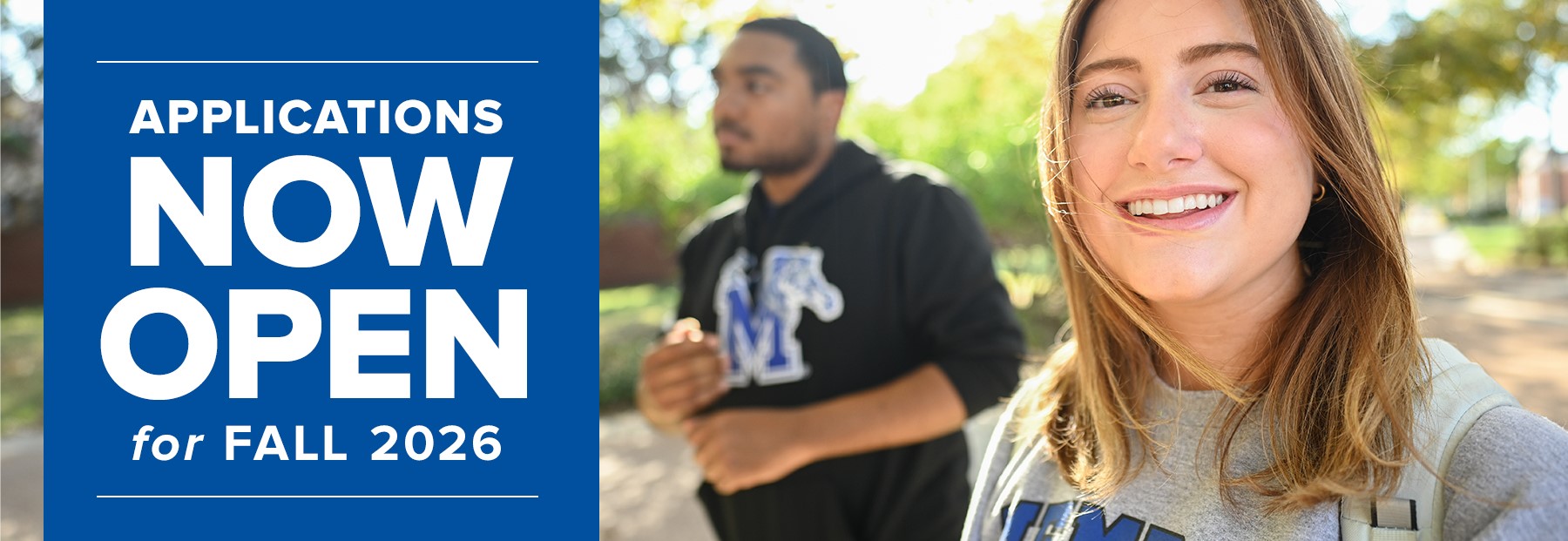


Caption Header: The heading for the Carousel Card. This will have a larger font than the rest. (optional)
Caption Description: The description for the Carousel Card. This will appear just below the Caption Header. (optional)
Link URL: The link for the Carousel Card. (optional)
Image: The background image for the carousel card.
Image Description: The desciption for the background image. This is also known as the image's alt text.
Leaving any of the optional fields blank will simply omit those entries from the component.
Contact & Socials (Legacy)
Address: Address. (optional)
Address Link: (optional)
Email: E-mail Address. (optional)
Phone Number: Phone Number. (optional)
Custom Link Text: Custom link text. (optional)
Custom Link: The link to your custom link text. (optional)
Instagram Link: The link to your Instagram page. (optional)
Facebook Link: The link to your Facebook page. (optional)
YouTube Link: The link to your YouTube profile. (optional)
LinkedIn Link: The link to your LinkedIn profile. (optional)
X Link: The link to your X profile (optional)
Leaving any of the optional fields blank will simply omit those entries from the component.
Parallax Callout (Legacy)
Parents & Guardians
The college search process can be overwehlming. We put together some resources to help!
Parent ResourcesHigh School Counselors
It is our goal to help you help your students find their place at the UofM.
HS Counselor GuideLeft Callout Header: The Heading for the callout on the left.
Left Callout Description: The description for the callout on the left. This will appear just below the header.
Left Callout Link Text: The link text for the button that appears below the Callout Header and Description
Left Callout Link: The link for the Left Callout Link.
Right Callout Header: The Heading for the callout on the right.
Right Callout Description: The description for the callout on the right. This will appear just below the header.
Right Callout Link Text: The link text for the button that appears below the Callout Header and Description
Right Callout Link: The link for the Right Callout Link.
Schedule Tour (Legacy)
Plan Your Visit Now that you've seen a sneak peek of what the UofM has to offer, schedule a tour today
to see what a day in the life of a Memphis Tiger is all about.
Background Image: The background image for this component.
Header: The heading for this component.
Message: The message for this component. This will appear just below the Header. (optional)
Button Text: The text for the button.
Button Link: The link for the button.