
Legacy Carousels
On legacy sites, the carousel is used on the landing page to showcase events, student activities, or more, and is what most visitors see first when they visit.
Per the guidelines set forth by Marketing, all carousel image dimensions must be 1600 px (width) x 552 px (height), with at least 72 DPI.
To edit one of the slides for the carousel, navigate to the following folder: /modern_campus_cms_sandbox/config/slideshow2019/
** Note: Carousel slides appear in alpha-numeric order. So 'slide1.pcf' will always appear before 'slide2.pcf'. **
Editing a slide
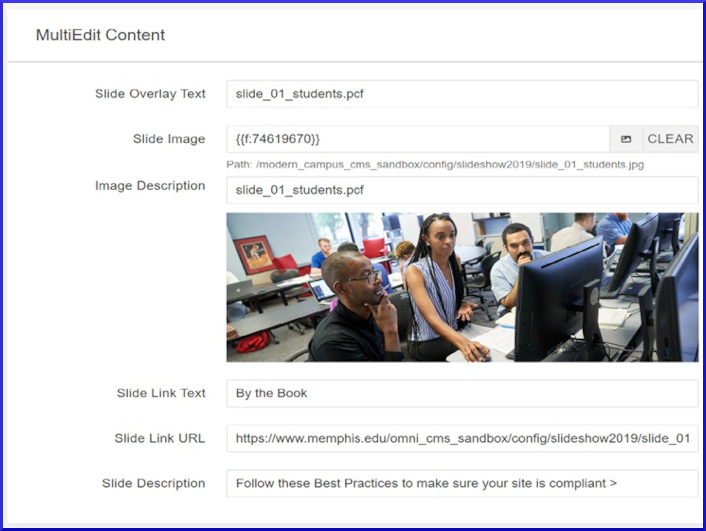
After selecting one of the slides in the /slideshow2019/ folder, you should see the following form that allows you to edit the content for your slide (pictured below)
Helpful Definitions
Slide Overlay Text: Slide Overlay Text
Slide Image: The link or file number for the slide image
Image Description: Description for the image used in the slide for accessibility compliance
Slide Link Text: The large text displayed at the bottom of the slide
Slide Link URL: The link used by both the 'Slide Link Text' and the 'Slide Description'
Slide Description: The smaller text displayed below the 'Slide Link Text' at the bottom of the slide
Once you're done filling out the form, please select the blue 'Save' button in the upper right-hand corner, then select the green 'Publish' button.
Creating a new slide
To create a new slide, first make sure you're in the /modern_campus_cms_sandbox/slideshow2019/ sub-directory. To note your current location, you can view the breadcrumb that is right below the 'Pages' heading near the top of the page (pictured below):

From there, select the blue '+ New' button or the dropdown menu next to it in the upper right hand corner, then select 'New Slide':
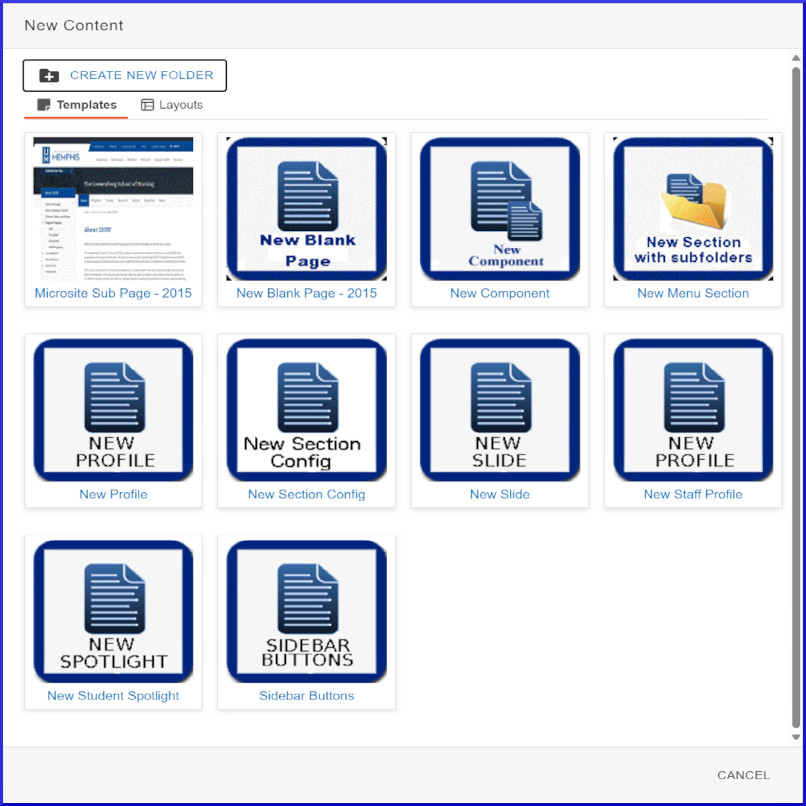
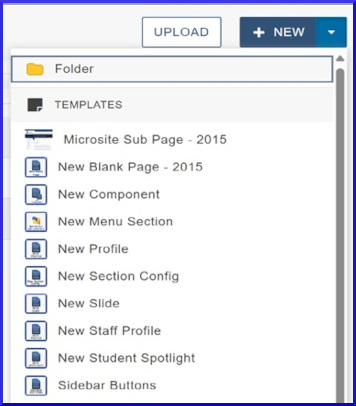
Now the slide only needs to be edited as described above. Once you've applied changes to your slide, select the blue 'Save' button in the upper right hand corner, then select the green 'Publish' button.
** Note: The slideshow files are the only files in the config folder that do not require a full site republish. Once you've saved and published a slide, navigate to /omni_cms_sandbox/index.pcf and publish that file for the changes to take effect. **
Legacy Training Documents >