
Legacy Horizontal Menus
The Horizontal Menu stretches across the top of most legacy University of Memphis sites, where one to eight options are displayed.
In the example below, a Sample Folder option rests on the menu:

To edit, navigate to the following file: /site_name/config/site_config.pcf
This file also allows you to update the breadcrumb for your microsite.
Editing the Horizontal Menu
Once you've opened this file, select the 'Multi-Edit' button in the upper right-hand corner

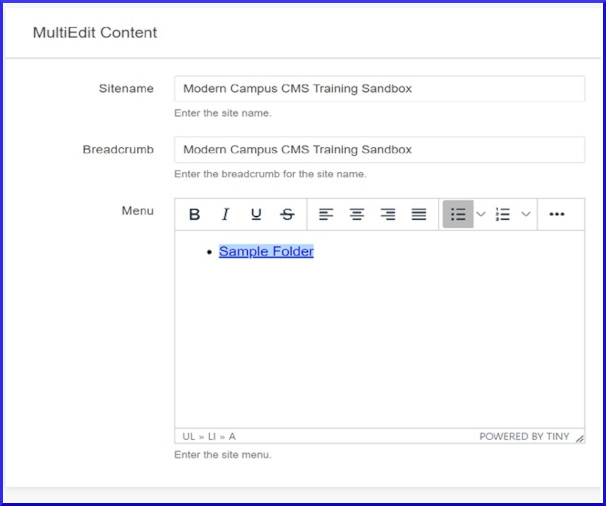
From here, you should see the following form, or something similar.
Helpful Definitions
Sitename: The name of your site. This will appear underneath the University's logo on your site.
Breadcrumb: Navigation tool that tells the visitor where they are in the site. These can be found just below the horizontal menu and follow this format: Home > Modern Campus CMS Sandbox > Sample Folder.
The menu items have to be typed in the text box area underneath the first two form fields. All menu items must be in a bulleted list. To transform your list of items into a bulleted list, select the 'Bulleted List' icon on your Modern Campus CMS toolbar. Once you're done filling out the form, please select the blue 'Save' button in the upper right-hand corner, then select the green 'Publish' button.
** Note: Saving and publishing a file that is in the config folder does not automatically apply changes to the other pages within the folder. After you've saved and published the file, please submit a request to https://umhelpdesk.memphis.edu so that we can republish your site's folder. **
Legacy Sidebar and Callout Menus >