
Creating a New Page
If you have not already done so, it's strongly recommended that you take some time to review our Template Guide, which includes brief descriptions of each new template and their intended use.
All of the new templates use the exact same form for creating individual pages.
To create a new page from one of the new templates, first, navigate to the folder you'd like to create new content in. From there, click the blue '+ New' button in the upper right-hand corner of your screen:

You'll be taken to the New Content screen, where you will be be able to select the new template from the available options.
You should see a form that looks similar to the images below:
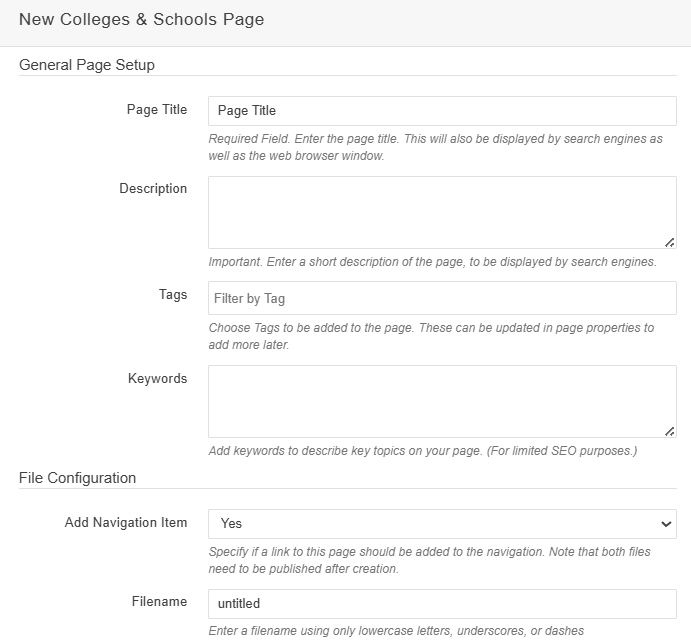
Page Title: The title of the page. This will appear in your browser's tab.
If you do not start your page with an H1 level heading, the Page Title will also serve as the page's default H1 level heading. To change the H1 level heading text, navigate to Page Parameters and update the Page Heading field.
Description: The meta description for the page. This is what search engines will display in search results.
Keywords: The meta tags for the page. These are the keywords site visitors can enter to find your page easier.
Add Navigation Item: This toggle controls whether or not this page is added to our ounav file, which controls both the side navigation and the tertiary navigation.
Filename: Name of the page. For example, the filename for this page is new_page_form. You do not have to include the .pcf file extension since that will be added after the page is created.
The filename for a new page cannot use uppercase letters or include special characters outside of the dash (-) or underscore (_). Please do not leave this as untitled.
Once you create your new page, you'll be able to edit the content sections on this newly created page.
From here, depending on the page you created, you can either choose to review the content sections available on each of the new templates:
Or you could take some time to review how some of the other design elements have changed: