
Faculty & Staff Templates
In addition to a revamped Faculty & Staff profile page, a standardized listings page was also created to accompany it.
Faculty & Staff Listings
This page lists published faculty and staff profiles. In order for the listings page to pull in information from these profile pages, the folder these templates are in must be included in a data file that only Level 10 Administrators have access to.
When you add or remove a profile page from your microsite's subfolder, please submit a ticket to our Helpdesk Ticketing system to let us know so that we can refresh the listings page.
This page has only one editable section: Intro Content. Anything added here will appear above the Faculty and Staff Listings section of the page. To begin editing it, select the green 'Intro Content' button.

When you are done editing this page, select the blue 'Save' button in the upper-right
corner of the WYSIWYG editor.
If you are done applying changes, select the green 'Publish' button.
Faculty & Staff Profile
Similar to the former Faculty & Staff template, many of the details for your profile page will be found under the 'Multi-edit Content' section of the page.
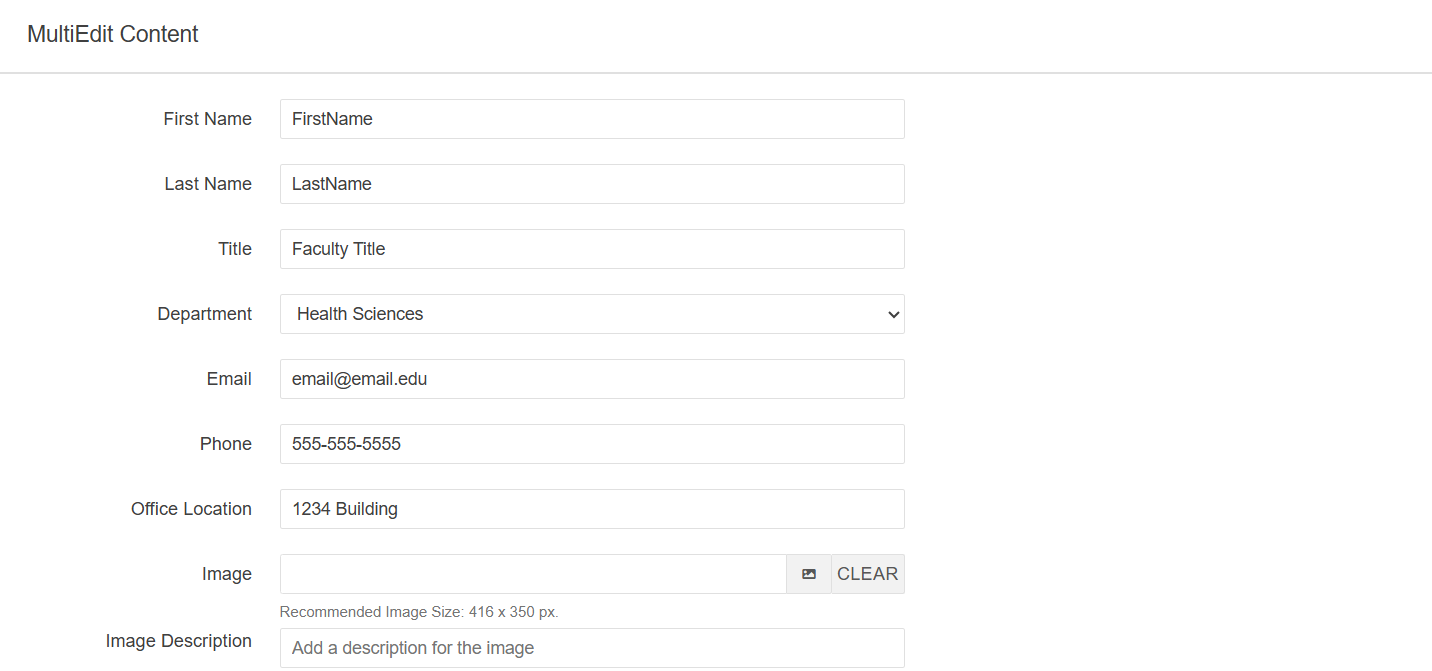
First Name: First Name
Last Name: Last Name
Title: Job Title
Department: Department
Email: Email address
Phone: Phone Number
Office Location: Office Building and Number
Image: Image for profile, this should be 416 x 350 px.
Image Description: The alt text for the image
Leaving any of these fields blank will simply remove the field from the page. The First and Last Name will be the breadcrumb for this page.
In addition to the 'Multi-edit Content' section, there are two more editable sections for this page:
Bio Information Section
By default, this section will have filler text that you can replace with your own content. To begin editing this section, select the green 'Edit Bio Information' button.

Full-Width Content Section
By default, this section will be blank. To begin editing this section, select the green 'Full-Width Content' button

When you are done editing this page or any of its sections, select the blue 'Save'
button in the upper-right corner of the WYSIWYG editor.
If you are done applying changes, select the green 'Publish' button.
Let's look at Page Parameters: